

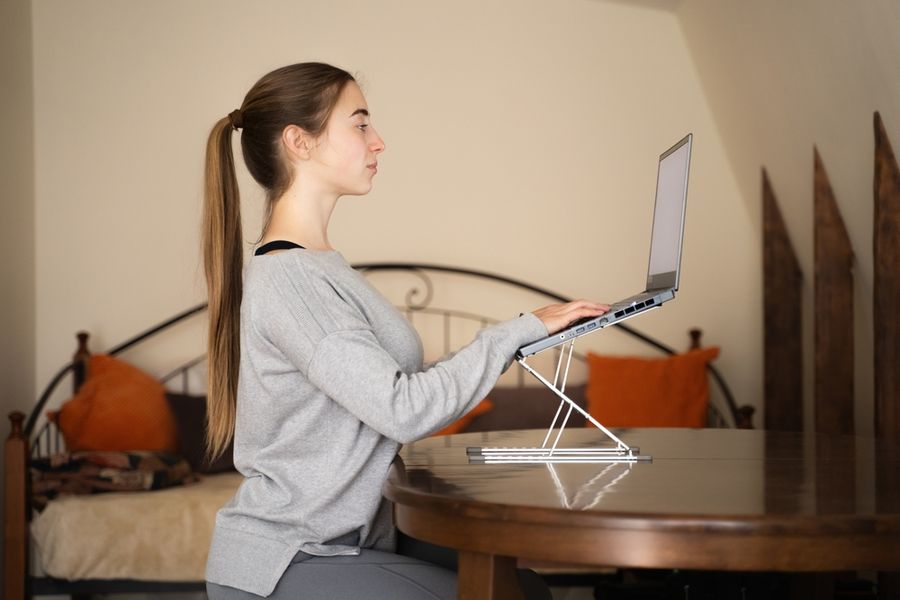
Working from home offers flexibility, but spending hours at a desk, kitchen table, or laptop can gradually lead to uncomfortable sitting habits. Poor workstation positioning and prolonged inactivity may contribute to neck stiffness, back discomfort, and shoulder tension. Fortunately, improving your posture doesn't necessarily require expensive ergonomic furniture. A few practical adjustments to your workspace, combined with regular movement, can help you work more comfortably and reduce unnecessary physical strain throughout the day.
1. Adjust Your Chair to Support Your Lower Back
A comfortable sitting position begins with proper support for your lower back. When a chair doesn't support the spine's natural curves, you may gradually lean forward or slump, placing unnecessary strain on surrounding muscles. A suitable chair should allow your back to rest comfortably against the backrest while keeping your shoulders relaxed.
Start by adjusting the seat height so your feet rest flat on the floor. Your knees should be approximately level with your hips, with enough space between the seat's front edge and the backs of your knees. If your feet cannot reach the floor comfortably, consider using a stable footrest.
If your chair lacks lumbar support, place a small rolled towel or supportive cushion behind your lower back. Avoid using an oversized pillow that pushes your body excessively forward. The goal is a comfortable, supported sitting position rather than forcing your spine into an exaggerated curve.
2. Position Your Computer Screen at a Comfortable Height
Working on a laptop or poorly positioned monitor often encourages people to bend their necks forward or tilt their heads upward. Maintaining either position for extended periods can contribute to fatigue and discomfort in the neck and shoulders.
Position your monitor directly in front of you, with the top of the screen at or slightly below eye level. The screen should be far enough away that you can read comfortably without leaning forward. A viewing distance of approximately 20–40 inches is generally recommended, although individual needs vary.
Laptop users can improve their setup by placing the device on a stable stand or suitable platform. However, raising the laptop also raises its keyboard, potentially creating another ergonomic problem. Using a separate keyboard and mouse allows you to position the screen and typing equipment independently.
3. Keep Your Keyboard and Mouse Within Easy Reach
Even a well-positioned monitor cannot compensate for a keyboard or mouse that forces you to reach awkwardly. When these devices sit too far away, you may stretch your arms forward, round your shoulders, or lean away from your chair's back support.
Arrange your keyboard directly in front of you, close enough that your elbows remain near your sides. Your shoulders should stay relaxed, and your forearms should be approximately parallel to the floor. Position your mouse beside the keyboard rather than farther across the desk. Maintaining relatively straight wrists can help limit unnecessary strain.
If your desk is too high, consider adjusting your chair and adding a footrest to preserve comfortable leg positioning. A keyboard tray may also help when the work surface cannot be adjusted.
4. Take Regular Movement Breaks Throughout the Day
Even an ergonomically arranged workspace cannot eliminate the effects of remaining in one position for hours. Sitting continuously can encourage muscle stiffness and fatigue, making regular movement an important part of maintaining comfortable working posture.
Consider taking a five-minute movement break approximately every hour. Stand up, walk around your home, refill your water bottle, or perform gentle shoulder movements. Research discussed in work-from-home ergonomic guidance supports supplementing conventional breaks with brief hourly breaks to reduce musculoskeletal discomfort and eyestrain.
Movement doesn't need to interfere with productivity. Try standing during phone calls, walking briefly between meetings, or placing frequently used items away from your desk. These small changes encourage different muscle groups to participate throughout the day.
5. Practice Gentle Exercises to Improve Postural Awareness
Strengthening and mobilizing the muscles that support your upper body can complement ergonomic adjustments. Long periods of computer work may leave your shoulders, neck, and upper back feeling tight, particularly when you rarely change position.
Begin with gentle shoulder rolls, moving your shoulders backward and forward several times. Next, try a chin tuck by drawing your chin slightly backward while keeping your eyes level. This movement should feel controlled rather than forceful. You can also squeeze your shoulder blades gently together before releasing them.
These exercises can be incorporated into short breaks without special equipment. Avoid forcing stretches or continuing movements that cause pain, tingling, or dizziness. If discomfort persists despite adjusting your workstation and activity habits, consider consulting a healthcare professional for individualized guidance.
Create a Workspace That Encourages Comfortable Movement
Improving posture while working from home involves more than sitting perfectly straight. A supportive chair, correctly positioned monitor, accessible keyboard, and regular movement breaks can work together to reduce unnecessary physical strain. Gentle exercises may also help you become more aware of tension before it develops into discomfort.
Start by identifying the biggest problem with your current setup and making one manageable adjustment. Remember that no single posture is ideal for an entire workday. The most sustainable approach combines comfortable positioning with frequent changes in movement, helping you remain productive without neglecting your physical well-being.